



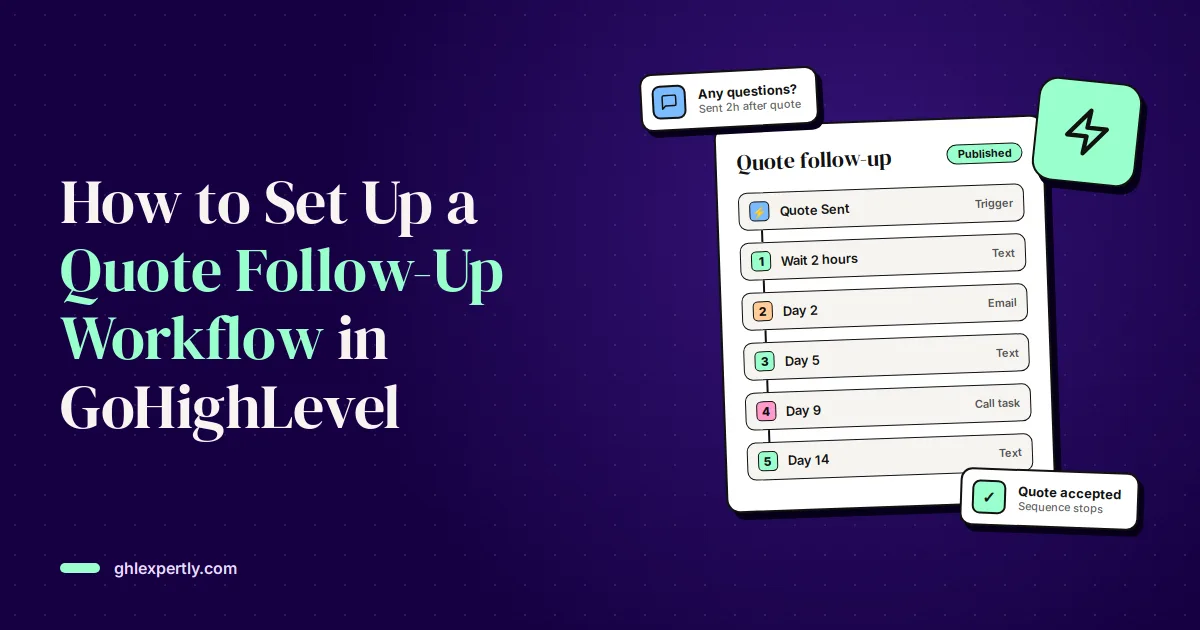
GoHighLevel follow-up automation earns its keep fastest on quotes. You have already done the hard part: the customer called, you visited or scoped the job, and you sent a price. Then the quote sits in their inbox while they think, get busy, or take a call from a competitor who followed up. Most businesses send one reminder, maybe two, and then let it go.
This tutorial builds a quote follow-up workflow step by step: a sequence of texts and emails over two weeks that stops the moment the customer replies, accepts or declines, moves the deal through your pipeline and tells your team when a person needs to step in. It is the same structure we build for service businesses on GoHighLevel, and it works whether you send quotes from GoHighLevel's own Estimates or from another tool. Trigger and action names match HighLevel's workflow builder as of November 2026.
Quick Answer: How the Workflow Works
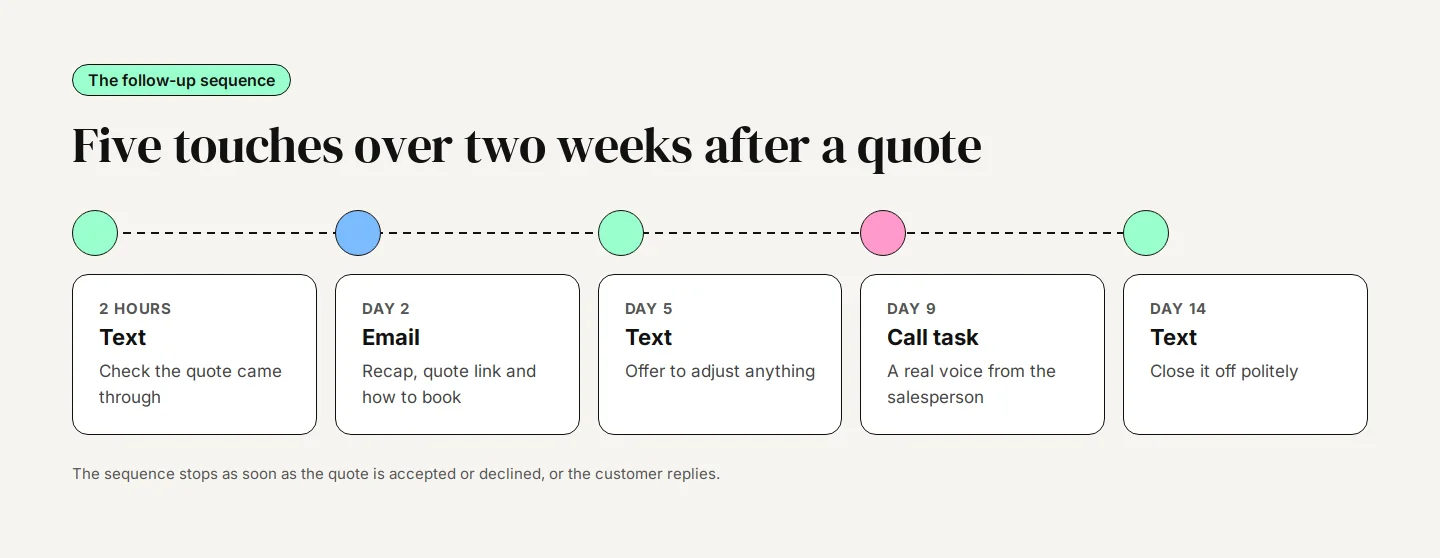
Move the deal to a Quote Sent stage, and a workflow starts. It sends five friendly follow-ups over 14 days by text and email, only during business hours. If the customer replies, the workflow stops and the conversation goes to a person. If they accept, a second small workflow ends the follow-up, marks the deal won and alerts your team. If they never respond, the deal moves to a follow-up ended stage so it doesn't disappear.
What You Need Before You Build
- A pipeline with a Quote Sent stage: Plus a Follow-Up Ended stage. Won and Lost are opportunity statuses, so they need no stage of their own. Our GoHighLevel CRM guide covers how to set stages up.
- Approved texting: Your number must show A2P Verified, or none of the texts will send. See our A2P registration guide if it doesn't.
- A verified email domain: So follow-up emails land in the inbox, not spam.
- Two custom fields on the opportunity: Quote amount and Quote link. They let the messages mention the actual price and link back to the quote.
Keep the quote details on the opportunity, not in custom values. Custom values are the same for every contact (your phone number, your sign-off), while each quote is different.
How the Three Workflows Fit Together
It is tempting to build everything in one workflow. Splitting it into three small ones is easier to test and fixes a real limitation: the Goal Event action, which normally ends a sequence early, has no option for an estimate being accepted.
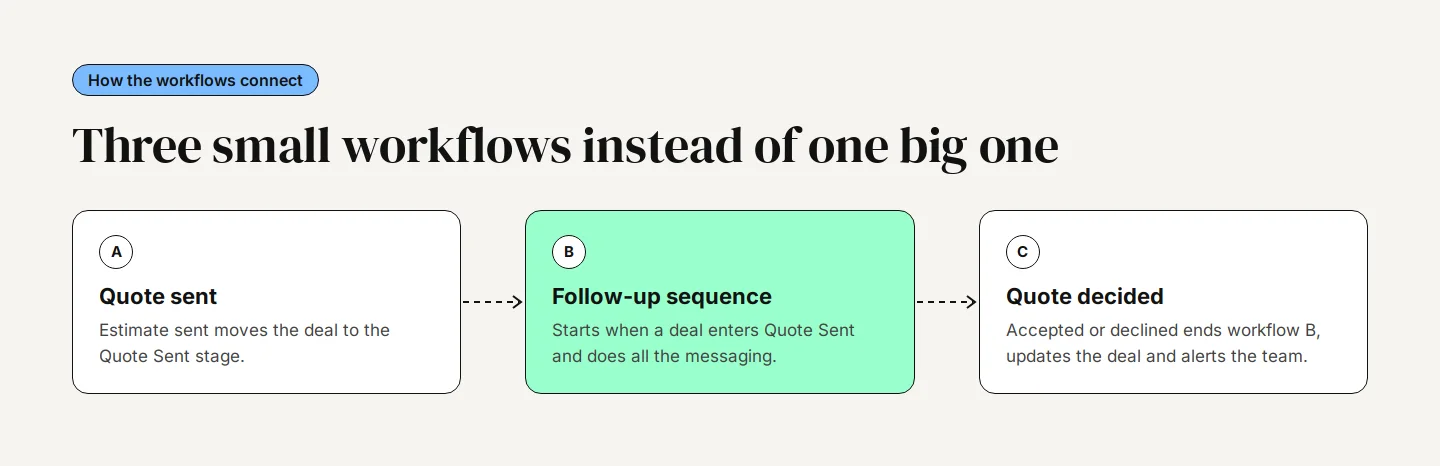
- Workflow A: Quote sent: Moves the deal to Quote Sent when you send a GoHighLevel estimate. Skip it if you move cards by hand or quote from another system.
- Workflow B: Follow-up sequence: Starts when a deal enters Quote Sent and does all the messaging.
- Workflow C: Quote decided: Ends workflow B when the quote is accepted or declined, updates the deal and alerts your team.
Triggering the sequence from the pipeline stage, rather than from the estimate itself, has two benefits. It works however you send quotes, and opportunity merge fields such as the quote amount only fill in when a workflow starts from an opportunity trigger.
Step 1: Move the Deal When a Quote Is Sent
If you quote with GoHighLevel's Estimates (Payments, Invoices & Estimates, Estimates), link each estimate to its opportunity using the Link Opportunity option in the estimate editor. Then build workflow A:
- Go to Automation, Workflows and create a new workflow from scratch. Name it Quote sent: move to stage.
- Add the Estimates trigger with the filter Estimate Status is Sent.
- Add a Create/Update Opportunity action. Choose your pipeline, set the stage to Quote Sent, keep the status Open, and turn on Allow Opportunity to Move.
- Save and publish.
There is one Estimates trigger with a status filter, not separate triggers for sent, viewed and accepted. If you quote from Jobber, a PDF or a proposal tool, move the card to Quote Sent by hand or through an integration and skip this step. Our Jobber integration guide covers one way to automate that.
Step 2: Build the Follow-Up Sequence
Create workflow B and name it Quote follow-up. Add the Pipeline Stage Changed trigger, filtered to your pipeline and the Quote Sent stage. Then add these steps:
| When | Channel | What it says |
|---|---|---|
| 2 hours after sending | Text | Hi {{contact.first_name}}, it's [Name] from [Business]. Just checking the quote came through OK. Any questions, reply here. |
| Day 2 | A short recap of what is included, what happens after they say yes, the quote link, and how to book a start date. | |
| Day 5 | Text | Hi {{contact.first_name}}, did you get a chance to look at the quote? Happy to adjust anything if it isn't quite right. |
| Day 9 | Call task | A task for the assigned salesperson to call. A real voice at this point recovers deals texts can't. |
| Day 14 | Text | Hi {{contact.first_name}}, I'll close this quote off for now so I stop nudging you. If the timing changes, just reply and I'll pick it straight back up. |
- Add a Wait step set to 2 hours, then a Send SMS action with the first message.
- Add a Wait step set to 2 days. Turn on Advance Window, set Resume On to your working days and Resume Between Hours to 9am to 6pm, so nothing goes out at 3am.
- Add a Send Email action with the recap. Insert merge fields from the picker rather than typing them; they are case-sensitive.
- Repeat the Wait and Send SMS pattern for day 5, then add an Add Task action assigned to the opportunity owner on day 9.
- Add the day 14 text, wait three more days, then a Create/Update Opportunity action moving the deal to Follow-Up Ended.
- Finish with Send Internal Notification so the owner knows the sequence is done and can decide whether to call one last time.
Write the messages as a person would. Short, first name, no capital letters shouting about discounts. Customers reply to texts that sound like a human checking in, and ignore ones that sound like a broadcast.
Step 3: Configure the Workflow Settings
Open the Settings tab in workflow B. These four settings decide whether the automation feels helpful or pushy.
- Stop on Response: on: The workflow ends for any contact who replies to one of its texts or emails. This is what hands the conversation to a person.
- Time Window: business hours: Messages scheduled outside the window wait until the next allowed slot. Internal steps such as tags and stage changes still run straight away.
- Timezone: contact: Use the contact's timezone if you serve customers across zones, with the account timezone as fallback.
- Allow Re-entry: on: So a repeat customer who gets a second quote next year starts the sequence again.
Don't add a Wait for the contact to reply step or a reply-based goal to this workflow. Stop on Response removes the contact the moment they reply, before those steps can act, which leaves the workflow behaving in ways that are hard to debug.
Leave Mark as Read off under the Conversations setting, so replies show up as unread for your team.
Step 4: Stop the Sequence When the Customer Decides
Build workflow C so nobody gets a nudge after they have already said yes.
- Add the Estimates trigger with Estimate Status is Accepted. Add a second trigger for Opportunity Status Changed to Won, which catches deals closed by phone.
- Add Remove from Workflow and pick Quote follow-up.
- Add Create/Update Opportunity with the status set to Won.
- Add Send Internal Notification to the owner, and a thank-you text to the customer explaining what happens next.
Copy the workflow for declined quotes: trigger on Estimate Status is Declined, remove from the follow-up, mark the opportunity Lost and create a task to ask why. A one-line reason (price, timing, chose someone else) on every lost deal is worth more than any report.
Estimates can also turn into invoices automatically. If you add a payment schedule with the first payment due on acceptance, the customer goes straight from accepting to paying the deposit, which removes one more place for the deal to stall.
Step 5: Test Before You Publish
Create a test contact with your own phone and email, and a test opportunity. Temporarily shorten the waits to a minute each, then run three scenarios.
- No reply: Every message arrives in order, the call task appears, and the deal ends in Follow-Up Ended.
- Reply after the first text: The sequence stops, nothing else arrives, and the reply shows unread in Conversations.
- Accept the estimate: The sequence stops, the deal moves to Won, and the team notification arrives.
Check each run in the workflow's Execution Logs, then set the waits back to their real values before you publish. The Workflow AI builder can draft a workflow from a description, but it can't test one, so this step is still yours.
Mistakes That Make Follow-Up Backfire
- Following up after a yes: The fastest way to look disorganised. Always build workflow C before switching on workflow B.
- Sending at night: Without a time window, a two-day wait from a 9pm quote lands at 9pm. Use the Advance Window on every wait.
- Too many touches: Five over two weeks is plenty for most quotes. More starts to feel like pressure, and opt-outs rise.
- Duplicate sequences: An old follow-up campaign left switched on alongside the new workflow sends double messages. Check before you publish.
- No STOP option: GoHighLevel can add opt-out wording automatically, and it switches on Do Not Disturb when someone replies STOP. Never override it.
Make It Better Once It Works
After a month of real quotes, look at where deals are won. If most accept after the day 5 text, that message is doing the work; if the day 9 call recovers deals, consider adding a second call.
- Stale quote alerts: A Stale Opportunities trigger can alert the owner when a quote sits untouched for a set number of days.
- Quote viewed: A separate workflow on Estimate Status is Viewed can alert the salesperson while the customer is looking at the price, which is the best moment for a call.
- AI replies: Conversation AI can answer simple questions about the quote out of hours and hand over to a person for anything else. Our AI Employee guide explains the setup.
The same pattern (trigger on a stage, a timed sequence, stop on reply, a second workflow to end it) works for any workflow automation that chases a decision: unpaid invoices, unbooked consultations, or leads that went quiet after a missed call.
Want It Built for You?
If you would rather not build and test this yourself, quote follow-up is part of our Launch build, alongside instant lead response, missed-call text-back and booking reminders. We write the messages in your voice, connect them to your pipeline, and test every path before it goes live.
Bottom line: A quote that nobody follows up is a quote you gave a competitor time to beat. Three small workflows in GoHighLevel make sure every one gets chased politely until the customer decides.