



A GoHighLevel account audit is a structured check of whether your account still does what you think it does. Most accounts are set up once, in a rush, and then left alone. Months later a form stops feeding the pipeline, a calendar shows the wrong hours, texts start failing quietly, and a workflow that used to chase every lead has been switched off since a staff member left. Nobody notices, because nothing crashes. Leads just go cold.
This checklist is the same order we work through when we audit a client account, written so you can run it yourself in an afternoon. Each of the 12 points says what to check, where to find it in GoHighLevel, and what good looks like. Menu paths match HighLevel's help center as of November 2026.
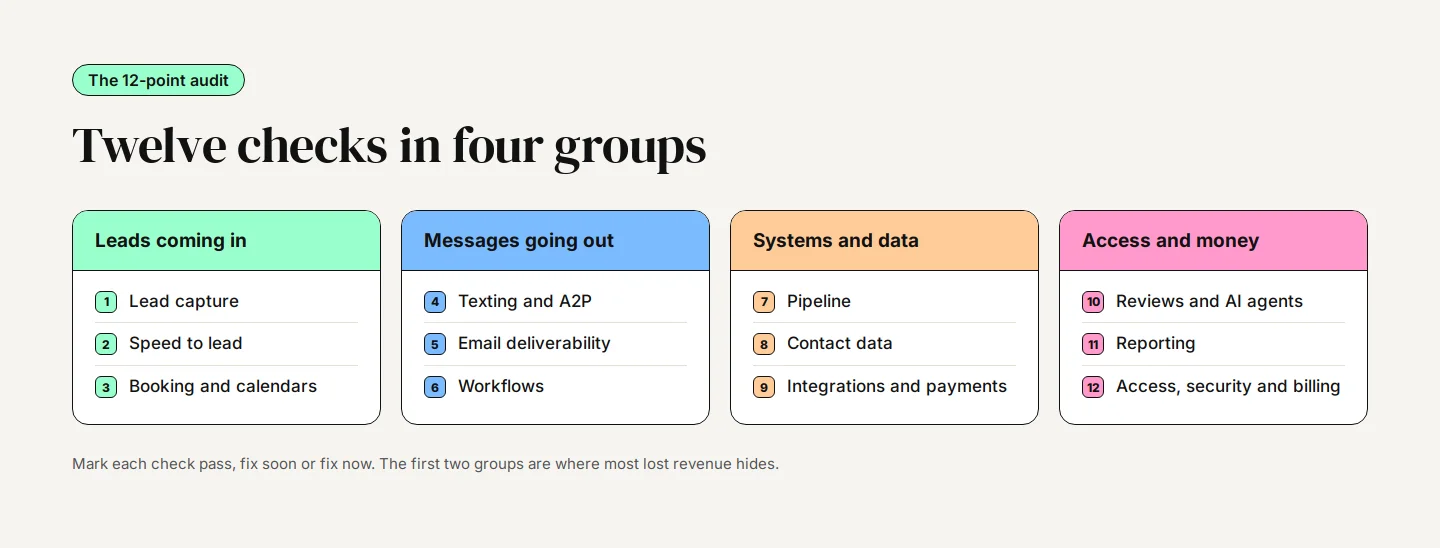
Quick Answer: The 12 Checks at a Glance
Work through the list in order. The first five points cover whether leads reach you and whether your messages reach them, which is where most lost revenue hides. The rest cover the systems that keep the account healthy over time. Mark each one pass, fix soon or fix now, and fix the fix-now items before you change anything else.
Before You Start
Set aside two to three hours and log in as an admin, because some screens (duplicate management, audit logs, billing) are hidden from regular users. Have a test phone and a test email address ready that are not already contacts in the account. You will submit forms, book appointments and reply to messages as if you were a customer.
Keep a simple list as you go: the point number, what you found and how urgent it is. That list becomes your fix plan at the end.
1. Lead Capture: Does Every Form Reach the CRM?
Visit every page that collects leads, the way a customer would, and submit each form with your test details. That includes website forms, funnel pages, surveys, the chat widget and any Facebook lead forms. Then check that each one created a contact, landed in the right pipeline stage, started the right workflow and sent the right notification.
- Where to look: Sites for forms and funnels, Sites then Chat Widget for the widget, and the new contact's record for what happened next.
- Watch for: Old forms still live on pages you forgot about, a chat widget with no fallback when nobody answers, and pages loading without https.
- Good looks like: Every test lead appears within a minute, tagged with its source, and someone on your team is told about it.
2. Speed to Lead: How Fast Does a New Lead Hear Back?
Time how long it takes from submitting your test form to the first reply. Speed matters more than polish: a Harvard Business Review study of 1.25 million leads found that firms contacting a lead within an hour were nearly seven times as likely to have a meaningful conversation with the decision maker as firms that waited even one hour longer. The same research found the average company took 42 hours to respond, and 23% never responded at all.
- Check: An automatic text and email go out within a minute of any new enquiry, from forms, calls and chat.
- Missed calls: Call your business number and let it ring out. A missed-call text-back should reach your phone within seconds. The setting lives under Settings, Phone System, Voice.
- Good looks like: A reply in under five minutes, every time, including evenings and weekends.
3. Booking and Calendars: Can Customers Actually Book?
Book a test appointment through each public calendar, then cancel and reschedule it. Check that the confirmation, reminder and follow-up messages arrive, and that the booking appears on the right person's calendar.
- Missing slots: The Troubleshooting Tool in the Calendar header explains why a time can't be booked, with codes such as CONFLICT, NOTICE or BUFFER, and flags users with no working hours set.
- Double bookings: Connected Google or Outlook calendars only block time when events are marked Busy. Events marked Free leave the slot open.
- Reminders: Open each calendar's Notifications tab and confirm reminders are switched on. In a Cochrane review of healthcare studies, text reminders raised attendance from 67.8% to 78.6%.
- No-shows: Check whether staff mark appointments as Showed or No Show. If they don't, no-show follow-up workflows never fire.
4. Texting: Are Your Messages Delivered?
Open Settings, Phone System, Phone Numbers. Every number you text from should carry a green A2P Verified label. A number with no label, or one stuck on In Progress or Rejected, cannot text US customers at all.
Then open Conversations and look for messages marked as unsuccessful. Hover over the red icon to see the code. Error 30034 means the number is not registered, 30007 means a carrier filtered the content, and 21610 means the person opted out. Failed texts are not retried automatically, so every one you find is a message a customer never got. Our A2P 10DLC guide walks through fixing registration problems.
5. Email: Do You Land in the Inbox?
Gmail, Yahoo and Microsoft all tightened their rules for business senders, and emails that don't meet them go to spam or are rejected. Check that you send from your own domain, not a shared one, and that it is set up properly.
| Check | What good looks like |
|---|---|
| Sending domain | A verified dedicated domain under Settings, Email Services, ideally a subdomain such as mail.yourbusiness.com |
| SPF and DKIM | Both pass. Gmail requires both once you send around 5,000 emails a day to its users |
| DMARC | A DMARC record exists, at least p=none, and aligns with your From address |
| Unsubscribe | One-click unsubscribe in the header and a visible link in every marketing email, honoured within two days |
| Spam complaints | Under 0.1% of emails sent. Gmail and Yahoo treat 0.3% as the hard ceiling |
| Bounces | Under 2%, with hard bounces removed automatically |
Microsoft started applying the same SPF, DKIM and DMARC rules to high-volume senders on May 5, 2025, and Gmail began rejecting non-compliant mail outright in November 2025. Send yourself a test campaign to a Gmail and an Outlook address and check which folder it lands in.
6. Workflows: Is Your Automation Still Running?
Workflows fail quietly. A deleted tag, a disconnected calendar or a removed user can break a step, and the workflow keeps running around the gap. Go to Automation, Workflows, Workflow Maps and choose Review workflows with errors. Filter by Has issues, open each one and read the execution log.
- Drafts that should be live: Look at the Draft list. A workflow someone paused while editing may never have been republished.
- Overlaps: Two workflows on the same trigger send double messages. Search for duplicates on Form Submitted and Contact Tag triggers.
- Settings: Check Allow Re-entry, Stop on Response and the Time Window in each workflow's Settings tab. Follow-up workflows should stop when the customer replies.
- Trace a contact: Search for your test contact in Workflow Maps to see every workflow it entered and where it stopped. History covers the last 60 days.
If your automation needs more than a repair, our workflow automation guide covers how to structure it.
7. Pipeline: Does It Match How You Sell?
Open each pipeline and ask whether the stages match what really happens in your business. A pipeline with stages nobody uses, or one where 80% of deals sit in the first column, is not giving you useful information.
- Stale deals: Sort by last updated. Anything untouched for weeks is either lost or forgotten. Close it or follow up.
- Values: Opportunities without a value make revenue reports meaningless.
- Alerts: The Stale Opportunities workflow trigger can alert you when a deal sits still. HighLevel suggests two to three days for short sales cycles and seven to ten for longer ones.
Our GoHighLevel CRM guide explains how to design stages that mirror your sales process.
9. Integrations and Payments: Is Everything Still Connected?
Connections expire. A password change or a staff member leaving can disconnect Facebook, Google or Stripe without anyone noticing. Open Settings, Integrations and look for error markers next to each connection.
- Facebook and Instagram: An expired connection stops lead forms and messages arriving. HighLevel emails a warning, but it often goes to someone who has left.
- Google: Check Google Business Profile, Google Calendar and Google Ads. A missing-permission warning means you need to reconnect.
- Stripe: Under Payments, Integrations, confirm Stripe is live, not in test mode, and run a small test payment through to the right contact.
- Outside tools: If your jobs or invoices live in another system, check the sync is still running. Our Jobber integration guide covers one common setup.
10. Reviews and AI Agents: What Are You Saying Automatically?
Anything that replies to customers without a person involved deserves a regular read-through.
- Review requests: Under Reputation, Settings, check the review link points to your current Google profile and that requests go out after a finished job, not before.
- Review replies: If Reviews AI replies for you, read the last month of replies. Consider holding replies to negative reviews for a person to approve.
- Chat and voice agents: Open AI Agents, Agent Logs and read a sample of real conversations. Check for wrong prices, invented answers and missed handovers to staff. Our AI Employee guide covers how each agent is configured.
11. Reporting: Can You See What Is Working?
If you can't say which channel brought in last month's customers, you can't decide where to spend next month's budget. Open Reporting and check three reports.
- Attribution Report: Shows first and latest source for each lead. Lots of blank or direct sources usually means forms or ads are missing UTM tags.
- Call Reporting: Check the missed-call share. Note that a call can show as completed even when it went to voicemail.
- Appointment Report: Compare booked, showed and no-show counts. A high no-show rate points back to point 3.
12. Access, Security and Billing
The last check covers who can get in and what the account is costing you.
- Users: Under Settings, Users, remove anyone who has left and check every role. Former staff with admin access are the most common risk we find.
- Two-factor sign-in: GoHighLevel has no switch to force it on everyone, so each user turns it on under My Profile, Security. Ask every admin to do it.
- Audit logs: Settings, Audit Logs shows who created, changed or deleted what. Records are kept for 60 days, so export anything you need to keep.
- Wallet: Under Settings, Billing, check the wallet balance, auto-recharge and last month's usage. If the balance runs out, texts, calls and emails stop.
- Backups: A snapshot saves your setup (workflows, funnels, calendars, pipelines), not your contacts or conversations. Export contacts separately.
How to Score Your Results and What to Fix First
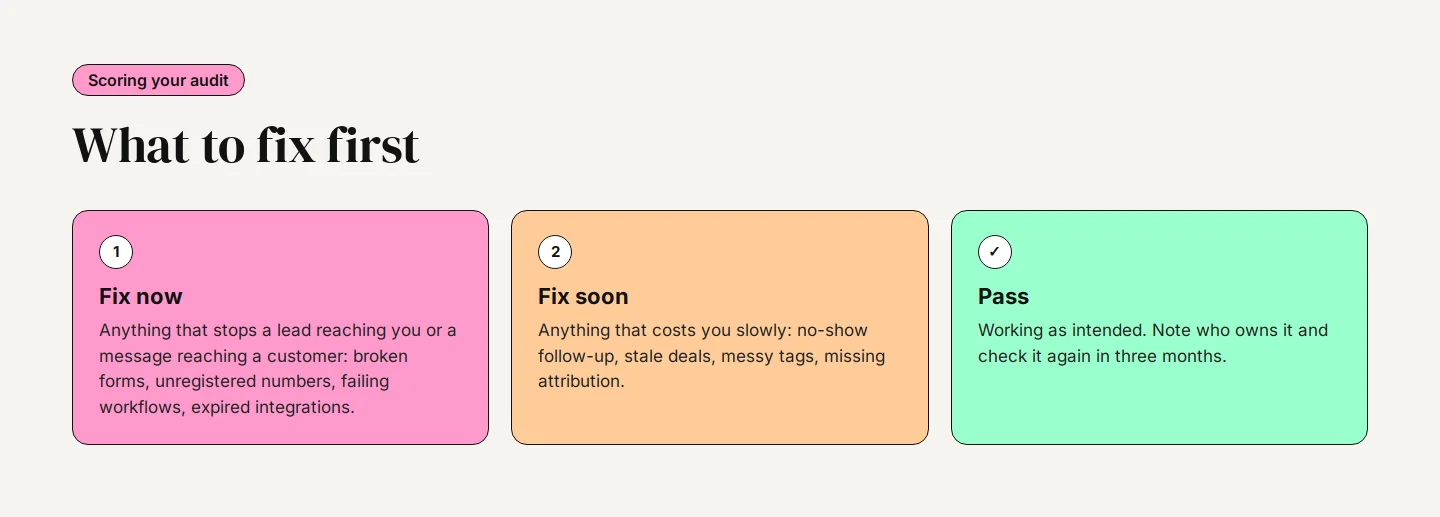
Fix-now items are anything that stops a lead reaching you or a message reaching a customer: broken forms, unregistered numbers, failing workflows, expired integrations. Fix-soon items cost you slowly: no-show follow-up, stale deals, messy tags, missing attribution. Write down who owns each fix and a date, then run the checklist again in three months.
Bottom line: Most accounts don't need rebuilding. They need the leaks found and plugged, starting with the ones that lose leads today.
When to Get a Professional Audit
This checklist catches what is broken. It won't tell you what should exist and doesn't: the follow-up sequence nobody built, the routing that would send hot leads to your best closer, or the work an AI agent could take off your team. That needs someone who has seen many accounts and can map them against how your business actually sells.
Our business systems audit covers six systems: booking, calendar, text messaging, email follow-up, customer support and sales pipeline. Starter is $295 for smaller businesses, Growth is $795 and adds interviews with up to three team members and every message sequence reviewed, and Custom runs from $1,495 to $2,995 for multi-location operators and agencies. Every audit ends with a prioritised fix list and a fixed quote, and the fee credits in full against the build if you go ahead.