


GoHighLevel WhatsApp integration matters most in markets where prospects reply on WhatsApp more reliably than email or SMS. Leads still get lost when conversations live on a personal phone, templates sit unapproved, or the 24-hour window closes before anyone follows up.
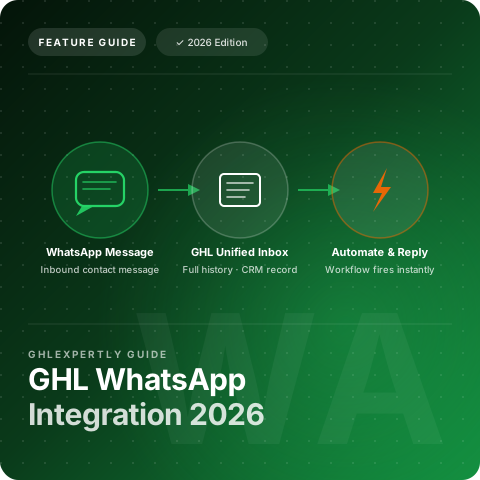
Running WhatsApp inside GoHighLevel puts every message on the contact record, in the unified inbox, and inside workflows when you set it up correctly. Below, we walk through API setup, template rules, automation, pricing, and how agencies roll WhatsApp out across client accounts.
Quick Verdict: GoHighLevel WhatsApp Integration
Enable GoHighLevel WhatsApp when your audience already uses WhatsApp for business communication and you need that channel inside the same CRM, inbox, and workflow stack as SMS and email. Skip it if your market rarely opens WhatsApp or you cannot commit to Meta verification, template approval, and per-conversation billing. For agencies serving international or WhatsApp-heavy local clients, the integration turns a personal-phone channel into a trackable, automatable system under one login.
| Factor | GoHighLevel WhatsApp | Personal WhatsApp App |
|---|---|---|
| Setup | Meta Business Manager + API number via embedded signup | Download app; no team access or automation |
| Team inbox | Unified inbox with full contact history | Single device; no shared visibility |
| Outbound rules | 24-hour window + approved templates outside it | Manual replies only; no compliant bulk outreach |
| Automation | Workflow triggers, template sends, SMS fallback | None native to CRM |
| Pricing | GHL plan + Meta per-conversation charges by category/country | Free app; no business API scale |
| Agency deployment | Per sub-account number; snapshot workflows and templates | Not scalable across client accounts |
What Is the GoHighLevel WhatsApp Integration?
The GoHighLevel WhatsApp integration is a native channel that connects a WhatsApp Business account to your sub-account so WhatsApp messages flow through the same conversations inbox as your SMS, email, and social messages. Every WhatsApp conversation attaches to the contact record, so agents see full history and automations can send or react to WhatsApp messages.
It runs on the official WhatsApp Business API, built for business-grade volume, team access, and automation. The key difference from a phone app: WhatsApp becomes a trackable, automatable channel inside the GoHighLevel platform, with every message landing in the GoHighLevel CRM unified inbox alongside SMS, email, and DMs. Multiple team members manage conversations from one inbox instead of a single phone, and automations can send WhatsApp messages, react to inbound messages, and branch logic based on delivery status.
Complete Guide to GoHighLevel WhatsApp Setup
Setup runs through the official WhatsApp Business Platform. The exact screens change as Meta and GoHighLevel update their onboarding, so treat the steps below as the reliable sequence rather than pixel-perfect instructions.
API Setup and Connecting Your Number
You need a Facebook Business Manager account in good standing, a phone number not already active on a personal or Business app WhatsApp account, and a GoHighLevel plan that includes the WhatsApp integration. Inside the sub-account settings, open the WhatsApp integration and authenticate through Meta's embedded signup flow.
Select or create a WhatsApp Business Account, choose the phone number, and verify it with a one-time code. Once connected, the number becomes an API number managed inside GoHighLevel with no separate phone required. WhatsApp then appears as a channel in the conversations inbox and as an action inside workflows. New accounts start with a lower daily messaging limit while Meta reviews your display name and quality signals.
Template Messages and Approval
Outside the 24-hour service window, you can only initiate a conversation using a pre-approved template message submitted to Meta. Templates fall into marketing, utility, and authentication categories, each priced differently by Meta.
Build a small library of approved templates for appointment reminders, follow-ups, and re-engagement before you launch automations. Submit templates early because approval can take hours or days. Name templates clearly so your team knows which workflow action maps to which use case.
The 24-Hour Window Explained
When a contact messages you, a 24-hour service window opens during which you can reply freely with any content: text, media, voice, or buttons, without template approval. Outside that window, free-form replies are not allowed for business-initiated outreach.
Design workflows to capture the inbound message, respond inside 24 hours where possible, and fall back to an approved template when the window has closed. Coach clients on this rule so they do not expect free-form cold outreach to work on WhatsApp the way SMS sometimes does.
Automating WhatsApp with Workflows
WhatsApp becomes an action inside GoHighLevel workflows, so you can send a WhatsApp template when a lead books, when an appointment is coming up, or when a pipeline stage changes, exactly like SMS and email actions.
Trigger a WhatsApp template on any workflow event: booking, form fill, tag applied, or pipeline stage change. Branch automations by channel: send first via WhatsApp, then fall back to SMS text-back if no WhatsApp delivery, all in one workflow. Inbound WhatsApp messages trigger workflows too: auto-reply, tag, route to a team member, or start a nurture sequence. For complex multi-step sequences, see the full GoHighLevel workflows guide.
Agency Deployment Across Client Accounts
Each client needs their own verified WhatsApp Business number, so deployment is per sub-account rather than a single shared snapshot number. What you can standardize is the surrounding system: the workflows, template structure, tags, and pipeline triggers that use WhatsApp once a client's number is connected.
Build a proven set of WhatsApp templates and automations once, save them as a snapshot, and reuse them for every client after connecting their number. Monitor Meta quality ratings per client number because a number marked as spam loses sending capacity. For agencies reselling through SaaS mode, decide whether WhatsApp usage is bundled into client plans or billed as a pass-through to protect your margin. Confirm current per-conversation rates for your target countries inside your account before quoting a client. See the GoHighLevel pricing page for platform plan costs that include the WhatsApp channel.
Who Should Use WhatsApp in GoHighLevel?
WhatsApp inside GoHighLevel fits operators whose prospects already prefer the channel and who need team visibility, CRM history, and automation on top of it. The sections below break down the profiles that benefit most and where a lighter SMS-only stack may be enough.
Local Service Businesses in WhatsApp-Heavy Markets
Contractors, clinics, and home services operators in regions where WhatsApp is the default business messenger should enable the integration. Appointment reminders and follow-ups get higher open rates than email, and every reply lands in the unified inbox instead of a owner's personal phone.
Real Estate and High-Touch Sales Teams
Agents and brokers working international buyers or markets where WhatsApp is standard benefit from shared inbox access and template-based re-engagement after showings. Conversation history on the contact record survives handoffs between team members.
Agencies Managing Multi-Channel Client Accounts
Agencies serving WhatsApp-dependent clients should deploy per sub-account with standardized snapshots for workflows and templates. Client teams collaborate without sharing passwords, and automations handle first response while humans step in for complex sales conversations.
Businesses Where SMS Alone Is Sufficient
If your audience rarely uses WhatsApp, native SMS and email inside GoHighLevel may cover follow-up without Meta setup overhead. Adding WhatsApp without demand increases cost and compliance work without improving reply rates.
Things to Consider Before Enabling WhatsApp?
WhatsApp through GoHighLevel is powerful but not plug-and-play. Run through the factors below before you connect a number, launch templates, or promise clients a fully automated WhatsApp channel.
- Meta verification and number eligibility: You need Business Manager access and a number not tied to an active personal WhatsApp account. Porting or releasing an existing number takes planning.
- Template approval lead time: Automations that depend on outbound templates cannot go live until Meta approves them. Build and submit templates before you promise launch dates.
- Per-conversation billing by Meta: Meta bills per conversation category and country, not per message. GoHighLevel may pass through or mark up these costs. Model usage before bundling WhatsApp into client pricing.
- Quality ratings and send limits: Spam reports and low engagement reduce sending capacity for a number. Monitor quality per client account and coach teams on compliant messaging.
- 24-hour window workflow design: Cold outreach and long-delay follow-ups require approved templates, not free-form SMS-style blasts. Design automations around the window from day one.
- Per-client number requirement: Agencies cannot share one WhatsApp API number across all clients. Budget setup time and Meta admin access for each sub-account that needs the channel.
Which WhatsApp Setup Should You Choose?
Choose manual inbox-only WhatsApp if you are testing the channel with a small team and inbound volume is low. Connect the API number, train staff on the unified inbox, and skip heavy automation until you understand reply patterns.
Choose template-driven workflow automation if you send appointment reminders, booking confirmations, or re-engagement after form fills. Pair inbound auto-replies with approved utility templates for outbound steps outside the 24-hour window.
Choose multi-channel workflows with SMS fallback if delivery reliability matters more than channel purity. Send WhatsApp first, branch to SMS when Meta delivery fails, and tag contacts by channel for reporting.
Choose agency snapshot deployment if you roll WhatsApp out to multiple clients. Standardize workflows, template naming, tags, and pipeline triggers in one master account, then connect each client's verified number during onboarding.
Concluding Remarks on GoHighLevel WhatsApp Integration
The GoHighLevel WhatsApp integration turns a channel your prospects already use into a trackable, automatable part of your sales system. Setup requires Meta verification and template approval, but once connected, WhatsApp works alongside SMS, email, and the CRM from one inbox.
For multi-location businesses and home service clients, WhatsApp is one of the highest-response follow-up channels when set up correctly. Want the GoHighLevel WhatsApp integration set up with verified numbers, approved templates, and automations that respect the 24-hour window? Book a free call about our GoHighLevel setup services. We deploy WhatsApp for agencies and local businesses every week.